Showing posts with label Android. Show all posts

Monday, August 20, 2012

Android Game console, Ouya, shows controller and S...


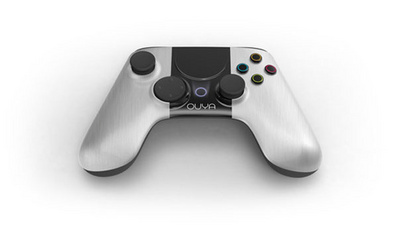
ouya controller


Earlier this month a company called Kickstarter announce a new console called Ouya which is an Android-based devices. Recently they introduced a console controller for this game. The form is already known, but the details are still unclear.

Kickstarter also introduces support OnLive streaming games using an application that will deliver console-style gaming experience in Ouya with the system on demand, backed by hundreds of game titles from 80 publishers, so users can continue Ouya still the same game on PC, Mac, tablet or mobile phone. Players can play for 30 minutes a game for free before deciding to buy it.

Onlive ouya

origin source GameInformer

Sunday, August 19, 2012

Acer Confirmed Android 4.1 Jelly Bean will be in t...

Acer Tablets


Although both carry the Android OS, but many manufacturers of electronic devices actually still compete for market share. That is why many of these producers are competing to become the first release of Android 4.1 update Jelly Bean into the output device. Of course in addition to increasing the prestige, the presence of Android 4.1 Jelly Bean is also expected to increase sales figures.

One of the leading electronics manufacturers from Taiwan, Acer via its official website in the Netherlands has recently been confirmed tablet product output Android 4.1 update will had Jelly Bean. However, a clearer detail of the tablet that will be allotted not yet reported.

Acer has released Iconia Tab A200, Iconia Tab 110, Iconia Tab 510, and 700 Iconia Tab that supports full-screen HD. Which is fortunate tablet Acer Android 4.1 Jelly Bean caught the first time?


origin source Ubergizmo via teknoup

Saturday, July 21, 2012

IM + Update to Android Boost Battery Efficiency


IM + Update
One of the popular multi-platform messenger, IM + version of Android gets an update, and update this bug is not a patch or something. IM + version 6.3 comes with 'increased use of battery', and adds support for four other messenger services. It also added features Message queue, ie, when the network connection is not active, then the message will be sent will be stored and sent back automatically when the network is connected.

For those of you who are not familiar, this application is an application that combines a number of short messaging services into one application. IM + supports Beep, Skype, Facebook Chat, MSN, Yahoo, ICQ, Google Talk, MySpace, and four new services, ie, mig33, SINA Weibo, Mamba.Ru and Fetion. Update of the application is already available on Google's Play .

origin source teknoup

Friday, July 20, 2012

Apple New Patent Filing that can affect to Android

apple new patent


Today came the news (again) that Apple filed a patent that could affect to all Android devices. The patent is U.S. patent 8,223,134 codes that include vertical scroll bar to disappear which usually appears on devices with touch screen. Vertical scroll bar appears when the screen is touched and moved up / down, and this bar can also be touched on, to make a more rapid movement. As is known, began to 2.3 Gingerbread Android platform also uses this interface system in general.

Apple is clearly planning to apply this patent is generally on the touchscreen and smartphone, so if the patent is approved, Google should be prepared to pay some money to Apple to continue to use the scroll system is good for the smartphone of the existing and future.

But if Google's objections, they can still use a traditional scroll bar always appears on the right side of the screen, because Apple does not cover the issue in patent filings, as well as traditional vertical scroll bar that has been used for years in various operating systems for both mobile and desktop .


origin source slash gear

Survey: The iPhone For $ 313, while Android Users Only $ 220


smartphone survey


A new survey reveals that the average iPhone user to estimate the value of $ 313 while mobile phone users who operate with the Android phone is only assessed at $ 220 only. It is known from the study of Piper Jaffray company in a company's annual poll which covers 400 consumers in the U.S. and Asia.The survey was taken in some big cities where most consumers are iPhone users. Survey about how much users assess their cell phones, where 208 participants from iPhone users an average rate $ 313 for their phones. This figure is known even higher than the price of the subsidized iPhone 16GB 4S.The comparison with the Android mobile phone where the user rate of $ 220 and BlackBerry phone users cell phone rate of $ 219. According to survey results, this value describes how much users are willing to pay more money than the price that operators charge to users.

Based on the results survety well known that Apple will continue to increase its market share between 5-10% in the next 3 years. Apple itself now only has a market share of 20% only, which is believed to be increased to a figure of 30% in 2015. Predicted that Apple will report sales of between 28-29 million iPhone on Thursday. As for the next year it is believed that the iPhone will have total sales of up to 170 million in 2013.

source Apple insider

Sunday, July 15, 2012

Install Official Android 4.0.4 ICS Update Sony XPERIA Ray ST18A/I


Sony Xperia Ray ST18a/I was shipped with Android Gingerbread on a 1GHz Qualcomm snapdragon processor paired with Adreno 205 GPU. Every Xperia Ray user is looking for Android 4.0.4 ICS firmware update and they can get it now officially. But Sony didn’t release the Official update via over the air (OTA). Users must download the rom package from official site and install the Android 4.0.4 ICS firmware update manually through flash tools on their Sony XPERIA Ray ST18A/I devices. We are providing detailed tutorial and Firmware package that will guide you to installed latest ICS update on Xperia Ray. The latest Official Android ICS was dubbed with FW 4.1.B.0.431 firmware version and this update has many bug fixes and also added new features. Sony has also tried to resolve the battery drainage problem, enhanced other features and solved Wi-Fi disconnection issues.


Are you confused with what is ST18A/I? well here is your answer Sony has released two different models Xperia ST18A and ST18I both having same specification and features. But Xperia ST18i was international model and ST18A was american version.


Sony Xperia Ray users already tasted with Android 4.0.3 ics update but they didn’t like it because it created a lot of problems. The device becomes very hot although we use it normally; frequent WI-FI disconnections, battery draining and sometimes the phone runs very slow and lagging.


So Sony has promised that they are going to release another update with the name of android 4.0.4 ics in order to fix all those issues.


Here New improvements from Android 4.0.3 to 4.0.4 ICS


  • Battery life seems to keep getting better.

  • Wi-Fi connection speed was increased and stability has been perfected.

  • Scrolling is very smooth, although we use live wallpapers running at the background.

  • Homescreen transition became smooth and faster response.

  • Phone Dialer UI improved a little bit.

  • New “DOCK” with a lot of multiple settings.

  • RAM was adjusting automatically based on demanding of apps usage and also more free internal memory space.

  • Faster and smoother camera.

  • Screen rotation is pretty fast.


Warning: On following this article you will root your device which voids warranty. The only way with which you re-claim the warranty is by re-applying the official update of ICS 4.0.4 firmware. Therefore, proceed at your own risk.


Pre-Requisites:


1. This article is only for the users who own original Sony Xperia RAY ST18A/I. Trying the methods and steps mentioned in this article on any other device or any other model of Sony can damage the device.

2. If your device is on the Gingerbread or ICS 4.0.3 firmware then this rooting process will not work as there are different procedures of rooting across different firmware’s. You can check your current firmware from the path “Settings > About phone” where it should show the current firmware as ICS 4.0.4 firmware.

3. You should ensure that there is at least 70% charge with your device, so that there will be no Power interruption during the process.

4. Backup all essential data’s on your phone like sms, contacts, call log and APN usernames, to assure that there will be no data loss during the process.

5. Disable all Security programs like Firewall and Antivirus from your computer and uninstall the same from your phone, as these security programs generally tend to interrupt the process.

6. Enable USB Debugging in your Sony Xperia RAY from the path “Settings > Applications > Development > USB debugging”. The option of USB Debugging should be ticked.

Instructions, Steps and Procedure to Update Sony XPERIA Ray ST18A/I to Official Android 4.0.4 ICS Firmware:

1. Download Flashtool for flashing the software on all sony devices. Get it from Here to your PC. The size of the file was 129 MB.

2. Install the flashtool application on the PC. In C drive you can see flashtool folder. Open the folder then you will get fives sub folders like this Custom, Drivers, Firmwares, Loaders and X10Flasher_lib.

3. Again you need to download one more file. It will update the flashtool software in windows from version v0.8.0.0 to v0.8.6.0. Once you installed this little update the application will run perfect without any problems.  From Here

4. Now download Android 4.0.4 ICS firmware zip package file for Sony Xperia Ray ST18a/I from Here to your PC. (file name ST18i_4.1.B.0.431_tw will be 197 MB).

5. Extract the firmware zip file then you will get ST18i_4.1.B.0.431_tw.ftf file.

6 Go to C: / Drive > flashtool > firmwares > delete everything present and Copy the firmware package ST18i_4.1.B.0.431_tw.ftf file to the current firmwares folder.

7. Now run the flashtool application. A medium sized window will be opened there you can able to see multiple options.

8. Click on flash icon. It will ask you to connect your phone on Flashmode. For that you need to turn off your phone, press and hold both back and Volume buttons together, then connect the USB Cable. Press OK and select the xperia ray device in the list.

9. Now you can see the 4.1.B.0.431 firmware version of your Xperia Ray ST18i device which we are going to flash it.

10. On right side of the window you need to select these options wipe data, wipe cache, wipe apps log and No final verification.

11. Click Ok to proceed. You will get message on the window like this preparing files for flashing.

12. Again it will ask you disconnect your device from PC and turn it off. Now power on the device, by press the back button and hold it. Plug the USB cable to the PC.

14. In flashtool window the flashing process will start and it will take some time to finish the process. You must have little patience while process is going.

15. When the flashing process has completed, reboot your phone, it may not start completely, may remain at Sony logo or remain blank/black. So, don’t be panic just be patient.

Note: If any point of time just in case you get stuck any anywhere, just re-insert the battery and follow the steps from the beginning.

That’s it, you have successfully install Official Android 4.0.4 ICS update your Sony Xperia RAY. Let us know how you will feel or have any queries, we are committed to help you in all possible ways.


Microsoft Claims Get Royalties of 70% of Android Devices


android device
Two Android is the future of manufacturing must pay royalties to Microsoft if the parties do not want their products end up in court, Aluratek and Coby Electronics. 


The merger of the two vendors with many other vendors are quite a lot to contribute in the form of royalties to the Microsoft. Even rumored that the current Microsoft has managed to collect royalties almost as much as 70% of the total number of Android devices. 


Aluratek is a company known for their Android tablet, similar to that in addition to producing Coby Androud tablet netbook and TV as well. These royalties they have to pay for claims that Microsoft's current OS Android and Chrome OS also violates their patent, the patent is still a mystery because the Microsoft has not revealed whether the patent in question.


However, most vendors do not want to take risks to fight openly in court with Microsoft, also spent a lot of fund.
source

Saturday, July 14, 2012

AT&T's Samsung Galaxy Note Getting Android OS Upgrade Tomorrow

Those who have a Samsung Galaxy Note from AT&T have something to look forward to: an upgrade to Android 4.0 (Ice Cream Sandwich) for this super-size smartphone is going to be released on Tuesday.


Samsung Galaxy NoteIn some ways this will be a significant upgrade, but not in all ways. Samsung has layered its TouchWiz user interface on top of the standard Android one, and this isn't being updated, so the general look of the UI isn't going to change. Still, things like Android Beam will be enabled.


And once this upgrade is installed Galaxy Note users will have access to a "Premium Suite" that offers a handful of extra features. This includes S Note, a unique tool that lets users combine notes and sketches with other digital content that can be easily shared. It also includes features such as Shape Match, which helps correct and digitalize geometric shapes, Formula Match, which helps solve numeric formulas that were hand-drawn with the S Pen, and My Story, an app designed to create personalized cards.


The upgrade to Android 4.0 for the Samsung Galaxy Note will start being distributed tomorrow, July 10. The Premium Suite will be available as a download from the Google Play app store after this upgrade has been installed.


And be sure to read our review of the Galaxy Note.


Source


View the original article here

Tuesday, July 10, 2012

Install Official Android 4.0.3 Update Huawei Ideos X5 U8800 Pro

The time has arrived for Huawei Ideos X5 U8800 Pro users to install Official Android 4.0.3 ICS firmware update on their devices. I know most of the users are you thinking how to install it right? Then we have prepared a detailed tutorial procedure on below. Huawei Ideos X5 U8800 Pro was upgraded version of his older brother Ideos X5 U8800 and it was launched in April, 2011. It was shipped with Android 2.3.5 Gingerbread OS. Recently Huawei Company has released Official Android 4.0.3 Ice Cream Sandwich ICS update for Ideos X5 U8800 Pro in June month with many bug fixes and also added new features. Sad news is they didn’t release the update via OTA (over the air); users must download the ICS rom file from the official website and install it manually. The phone has 800 MHz processor and Adreno 200 GPU that is supporting ICS well. Check out the detailed list of new features below added on this Android ICS firmware for Huawei Ideos X5 Pro:


Huawei UI Smart dialing feature

Huawei UI Smart search for contacts

Added Microsoft Exchange synchronization

Optimize the boot speed

Optimize the GPS speed

Support the WPS feature (Wi-Fi)

Enhanced WI-FI wireless performance

DLNA Support

File manager Support for file browse, more convenient for find files

Improved Huawei User Interface UI, which improves the charge design when phone has power off.

Now Camera Supports ‘Camera UI Style’, Autofocus and Touch Focus

Camera also supports HDR Feature, Panorama mode Feature

Optimize Power-Off Alarm


Warning: This article is only meant for educational purpose. Therefore, neither we nor the developer should be held liable for any damages caused to your phone while following the methods and procedures. This procedure will not void your warranty, so you can claim your warranty back when going to huewai service center.


Pre-Requisites:


1. The methods and procedures in this article should only be tried only on Huawei Ideos X5 U8800 Pro.

2. Ensure that there is at least 70% or more charge with your device, so that there is no Power interruption during the process.

3. Please backup all essential data’s on your phone, to assure that there will be no data loss during the process.

4. Disable all Security programs like Firewall and Antivirus from your computer and uninstall the same from your phone, as these security programs generally tend to interrupt the process.

5. Enable USB Debugging in your Huawei Ideos X5 U8800 Pro from the path “Settings > Applications > Development > USB debugging”. The option of USB Debugging should be ticked.
6. There is no need of rooting the device for installing this rom.


Steps and Procedure to Install Official Android 4.0.3 Ice Cream Sandwich firmware on Huawei Ideos X5 U8800 Pro:


1. Download the Official Ice Cream Sandwich firmware package for your Ideos X5 U8800 Pro device from here to your computer. The file name was HUAWEI Ideos X5 firmware( U8800pro_Android 4.0_V100R001C00B926_Normal).zip and size will be 356MB.


2. Now, connect your device to the PC via original USB cable. Make sure you have all necessary drivers installed in your PC for your device.


3. Extract the downloaded zip file then you will get dload folder and copy that ‘dload’ folder into the root directory of your phone micro SD card.


4. Now, turn off your device and then turn it on again and there would be Android Robot on the screen which indicates that the installation process of the ROM has been started successfully. On successful completion of the installation you will get “OK” on the screen.


5. Remove the SD card of the phone after verifying the installation was successful and then press Power button to reboot the device and land onto the latest Android 4.0.3 Ice Cream Sandwich firmware.


Note: If you get a “FAIL” message during the process of installation. Kindly follow the steps again to install the firmware on your device.


That’s all; you’ve successfully installed latest firmware Android 4.0.3 V100R001C00B926 on your Huawei Ideos X5 U8800 Pro. Share your experience with us and let us know your issues, we are here to help you always.

How to Install Android 4.1 Jelly Bean Update Galaxy Nexus GSM

It was the perfect chance for HTC One X users to update their devices with Android 4.1 Jelly Bean JRN83C Firmware version. We have tutorial How to Install Android 4.1 Jelly Bean update on HTC One X. Android 4.1 Jelly Bean has created a lot of ripples on the internet as everyone is eager to download and install Jelly Bean for their phone and tablets. Jelly Bean is faster and more efficient than Android 4.0.4 Ice Cream Sandwich ICS. Some of the great features are Offline Voice to text support. The new UI is very fast and butter smooth. HTC One X owners can now enjoy JellyBean on their phones and we must say thanks to tgascoigne a xda dev forum member for releasing the SDK port. WI-FI, Camera, Radio and Audio are not working so it is not a problem for people who want all the functionality from the device. This custom ROM is based on the Jelly Bean update released for Galaxy Nexus. Developers are trying to resolve the bugs in the upcoming build versions, and it will take few weeks to get a fully working stable ROM.


Hello users, this custom rom is still in beta stage and it was not the official version developed by HTC company. So it may not function properly on your device. Make sure that keep all this thing kept in mind before flashing the Jelly Bean on your HTC One X phone. Moreover, HTC has made an announcement officially they have created a scheduled list to release the official version of the Jelly Bean update via OTA for some of their devices and also for the most powerful quad core device HTC One X. It will soon arrive globally in mid-September.


Warning: This article is meant for instructional and educational purpose only. Neither we nor the developer should be held liable for any damages caused to your phone. Please proceed at your own risk.


Prerequisites:


1. This instructional guide is only for the users who own original HTC One X. Please do not try this article on any other phone or any other of HTC models.

2. Charge your device so that there are at least 70% or more charge with it, so that there will be Power interruption during the process.

3. Please backup all your valuable data’s on the phone, so that they are not lost during the process.

4. Disable all Security programs like Firewall and Antivirus from your computer and uninstall the same from your phone, as these security programs generally tend to interrupt the process.

5. Enable USB Debugging in your HTC One X from the path “Settings > Applications > Development > USB debugging”. The option of USB Debugging should be ticked.

6. HTC Sync Drivers must be installed already on your PC. If not installed then you can download it from the official site from here.


Note: Before starting this procedure, your HTC One X device must be unlock bootloader and also rooted on current firmware version. Clockworkmod recovery is also needed for installing the zip files directly from the phone itself.


Steps and Procedure to Install Manually HTC One X with Android 4.1 Jelly Bean Firmware Update:


1. Download Jelly Bean Firmware package zip file to your PC from Here.


2. Connect the HTC One X to your PC via USB cable. Then copy the firmware package in the root directory of your phone’s micro SD card.


3. Once the file is copied to your device then disconnect the phone from the PC.


4. It’s time to download once more file named Flash_Boot.zip file on your computer from here. Extract the Flash_Boot.zip file when it was downloaded.


5. Well you need to unzip Downloaded Firmware Package “jellybean_endeavoru_tgascoigne_4.zip” on your PC. After you will get boot.img file.


6. Now Copy boot.img file into Flash_Boot folder which you got in step 4. Then you will get total 4 files in that folder.

boot.img

flash-boot-linux.sh

flash-boot-mac.sh

flash-boot-windows.bat


7. Switch off the device and reboot your phone so as to enter it in Bootloader mode. To do so, press and hold Volume Down + Power buttons together, so that the device is entered in “FASTBOOT” mode by selecting the option. You can use volume buttons for navigation. Then connect your phone to the computer.


8. Open flash boot folder which you extracted in your PC in Step 4. Double Click flash-boot-windows.bat file in order to run the application.


9. Wait for some time the kernel will be flashed within few minutes in your device.


10. Now, press the Power button and select the BOOTLOADER option present and select the “Recovery” option to enter the device in the clockwordmod Recovery mode.


11. Now, from the Recovery Menu, select “Wipe data/factory reset” option and then select “Wipe Cache partition” option.


12. In the ClockworkMod Recovery, select “install zip from sdcard” then select “choose zip from sdcard” and then select the “jellybean_endeavoru_tgascoigne.zip” from the SD card you’ve placed.


13. After the installation process has completed, the phone will be booted into new Android 4.1 Jelly Bean.


That’s it, you have successfully installed the Jellybean 4.1 firmware package on your HTC One X. Share your thoughts or let us know your problems, we are here to resolve the same by all possible ways.

How to Install Android 4.1 Jelly Bean Update HTC One X

Are you more anticipated? How to Install Android 4.1 Jelly Bean JRN84D firmware update on Samsung Galaxy Nexus GSM, then we have detailed tutorial with steps on below. Galaxy Nexus is the first device going to get latest official Android 4.1 JellyBean OS update. Android 4.1 Jelly Bean is released recently for both mobiles and tablets and also Nexus 7 Tablet comes with pre-installed with it. This has made Nexus 7 tablet the most updated and desired one. You can get the update over the air. However, if you have rooted your device and want to update, then follow the below procedure to download and flash Jellybean updated firmware on Galaxy Nexus. Jelly Bean will be soon available for Motorola Xoom, Nexus S and a few other phones.


Samsung has already scheduled to release official Android 4.1 jelly bean update via OTA for Galaxy Nexus in mid-July. So are you going to wait that much a long time to taste the jelly bean flavor? I think it’s not a good idea to wait for the official release, although we have a simple tutorial for installing Android 4.1 Jelly bean OS manually on your device. After installing this update you can observe a lot of cool features like Google Now virtual voice assistant, new widgets with resizable settings and much more.


Warning: Neither we nor the developer should be held liable for any damages caused to your phone. This article is only meant for educational and instructional purpose. Rooting will void the warranty and do it as your own risk.

Prerequisites:

1. This article is only for the users who own original International Samsung Galaxy Nexus GSM. Trying this article on any other device or any other model of Samsung Galaxy Nexus CDMA may damage your phone.
2. Charge your device so that there are at least 70% or more charge is there with it, to assure that there will be no Power interruption during the process.
3. Backup all essential data’s on your phone like sms, call logs, contacts and APN to assure that there will be no data loss during the process.
4. Disable all Security programs like Firewall and Antivirus from your computer and uninstall the same from your phone, as these security programs generally tend to interrupt the process.
5. Enable USB Debugging in your Samsung Galaxy Nexus GSM from the path “Settings > Applications > Development > USB debugging”. The option of USB Debugging should be ticked.
6. Make sure that you must be Unlock Bootlaoder and Rooted on Android 4.0.4 ICS firmware Galaxy Nexus GSM.


Steps and Procedure How to Install Android 4.1 Jellybean JRN84D firmware on Samsung Galaxy Nexus GSM:


1. Download the Jellybean 4.1 firmware rom package for your Galaxy Nexus from here to your computer. The file name was jb-takju.zip and size will be 229 MB. You can always come here and check above link for upcoming modified stable versions of JellyBean.


2. Copy the downloaded zip file into root directory of your phone’s SD card.


3. Reboot your phone so as to enter it in Bootloader Mode. To do so, press and hold the Volume Up + Volume Down + Power buttons together for a few seconds until the screen turns on.


4. Now, select “install zip from sdcard” then select “choose a zip from sdcard” and then select the firmware package you’ve placed on the SD card.


5. After the installation process has completed, the device will automatically return back to the Recovery Mode.


5. Now, from the Bootloader Menu, select “++++Go Back++++” and then select “reboot system now” to reboot your phone.


That’s it you’ve successfully installed Android 4.1 Jellybean on your Samsung Galaxy Nexus GSM. Share your thought with us or any problem you face, we will try to help you in all possible ways.

Install Cyanogenmod 9 Android 4.0.4 ICS Galaxy Note N7000

We have found quick tutorial how to install Cyanogenmod 9 CM9 Android 4.0.4 ICS Firmware Rom on Samsung Galaxy Note N7000. Galaxy Note GT-N7000 has got the ICS update recently and now CyanogenMod team has launched a full ICS overhauled version of ICS Firmware update based on XXLB2 Android ICS 4.0.4. CyanogenMod are best ROMs for Android devices. CM9 for Galaxy Note is yet in nightly build and final official version will take 3-4 weeks to release. There are few issues like FM radio is not working, GLONASS satellites are not reporting GPS status, also issues with Noise reduction and volume controls. But these are all minor issue that will be resolved soon. CM9 is a fully stripped version based on AOKP, crafted to perform faster and give a better battery life. ICS camera feature was working excellent and also taking high resolution photos and videos. Developers are promised that they are going to fix all this issues on upcoming release updates. We have provided a detailed step by step guide to assist you with the installation.


Warning: Following the below mentioned methods and steps may damage or brick your phone for which neither we nor the developer would be held liable, as this is post is meant for educational and instructional purpose.


Pre-Requisites:


1. The methods and steps below should only be applied on original flagship Samsung Galaxy Note GT-N7000.

2. Please charge your device so that at least 70% charge is there with it, so as to assure that there is no Power interruption during the process.

3. You should backup all essential data’s on your phone, as they may be lost during the process.

4. Disable all security programs like Antivirus and Firewall from your computer and uninstall the same from your device, as these security suites generally tend to interrupt the process.

5. Enable USB debugging in your Samsung Galaxy Note N7000 from the path “Settings > Applications > Development > USB debugging”. The option of USB Debugging should be ticked.

6. Make sure that your Galaxy Note must be rooted already on your current firmware version and also installed clockworkmod recovery on it.


Steps and Procedure to install CyanogenMod9 Android 4.0.4 Ice Cream Sandwich (ICS) Firmware on Samsung Galaxy Note GT-N7000:


Step 1. Download Latest CM9 Build package for your device from here and Google apps from here to your computer. Copy the both downloaded files into the root directory of your phone’s SD card.


2. Reboot your phone so as to enter in to Recovery Mode. To do so, press the Volume Up + Home + Power buttons together.


3. In Recovery Mode, select the “wipe data/factory rest” then select “wipe cache partition” and confirm your actions. Now, go to “advanced” and select “wipe dalvik cache” to wipe dalvik cache.


4. Next, select “install zip from sdcard” then select “choose zip from sdcard” and then choose the file you transferred to the SD card.


5. After the installation has completed, select “++++Go Back++++”.

6. Now once again select “install zip from sdcard”, this time you need choose the google apps package zip file.

7. Once you installed both files then select “reboot system now” to reboot your phone.


That’s it you have successfully installed CyanogenMod9 Android 4.0.4 Ice Cream Sandwich (ICS) Firmware on Samsung Galaxy Note GT-N7000. Share with us if you face any issue, we will try to resolve the same.

Monday, July 9, 2012

Install CyanogenMod 9 Android 4.0.4 ICS Motorola Defy Plus

Finally we found the tutorial How to Install CyanogenMod 9 CM9 Android 4.0.4 ICS custom Firmware rom update on Motorola Defy Plus. Motorola Defy+ Plus is a rigid Android Smartphone from telecom giant Motorola. They have done pretty fine with this phone but we are not much impressed with battery. The phone is totally water and dust resistant. For people who work on very dirty atmosphere or keep throwing and dropping their phone here and there can go for this phone. Recently, XDA dev forum member has launched Android 4.0.4 ICS custom ROM for Defy Plus and it is not official yet still in beta stage. This custom developed ROM is based on CyanogenMod 9 which can be installed manually, most of the things are working. Being based on AOKP this ROM is fast and performing nice with battery as well. You just need to root your Defy plus on current firmware which you are currently running and also install Custom Recovery too.


Warning: Be careful while following the methods and procedures mentioned in this article, as they can completely damage your phone or brick it for which neither we nor the developer will hold any responsibility.


Let see which features will work on this latest firmware rom version. Wi-Fi connection runs good with no more frequent disconnections, camera with panorama mode, plays 720p videos without any lagging.


Pre-Requisites:


1. The methods and steps mentioned in this article are only meant for Motorola Defy Plus users. Trying them on any other device or any other model of Motorola may produce un-desired outputs.

2. Please charge your device so that there is at least 70% charge with it, to assure that there will be no Power interruption during the process.

3. You should backup all essential data’s on your phone, as there are chances of them getting lost during the process.

4. Disable all Security programs like Firewall and Antivirus from your computer and uninstall the same from your phone, as these security programs generally tend to interrupt the process.

5. Enable USB Debugging in your respective Motorola Defy Plus from the path “Settings > Applications > Development > USB debugging”. The option of USB Debugging should be ticked.


Steps and Procedure to update Motorola Defy+ with ICS 4.0.4 Firmware:


1. Download the latest ICS for the Motorola Defy + plus from here and Google Apps package from here to your computer. Extract both the files and place them on the root directory of your phone’s SD card.


2. Reboot your phone so as to enter it in Recovery Mode. To do so, press the Volume Down + Power buttons together for few seconds until you see the Recovery Menu.


3. Now, from the Recovery Menu select “install zip from sdcard” then select “choose zip from sd card” and then choose the firmware package you’ve downloaded and placed on the SD card.


4. After the firmware is installed you will be taken back to the Recovery Menu, repeat the same procedure to flash the Google Apps Package. That is, “install zip from sdcard” -> “choose zip from sdcard” and then browse to the Gapps package from your SD card.


5. When the Google Apps Package has been successfully flashed, return back to the Recovery Menu and select “reboot system now” to reboot your system and land into the new installed ICS firmware.


That’s it; you’ve successfully updated your Motorola Defy+ with ICS 4.0.4 Firmware. Share your joy with us or let us know if you have any issue, we are here to find a solution for the same.

Sunday, July 8, 2012

The Android OS: Splintered but Unbroken

The concept of an operating system for your phone is a relatively new development as smartphones have emerged as the go-to device for more and more work and play. How well companies manage those operating systems is proving to be quite a differentiator.


Back when we all used flip phones, no one upgraded their OS and the phone makers didn't bother to push out updates, unless there was a serious problem that needed to be fixed. We got an updated OS when we got a new phone.


Now, smartphones have adopted an upgrade cycle comparable to computers, with operating systems getting far more regular updates. That's partly due to their increased complexity and the subsequent rise in the need for to issue fixes in the first place.


How About the Rivals?


Google's rival Apple has handled the upgrade path reasonably well. It's had some boondoggles, like when iOS 4 proved to be too much for old 3G phones. At the recent Worldwide Developer Conference, Scott Forstall, the senior vice president who heads up the iOS group, said 80% of iPhone customers are using iOS 5.x, the latest version, while most of the rest use 4.x.


By and large, Apple has managed to avoid fragmentation for two reasons: one, Apple faithful have a habit of upgrading when a new phone comes out, so they always have the latest and greatest; and two, Apple makes it easy on its customers, giving out free iOS upgrades to every recent iPhone, iPad, and iPod touch model all on the same day.


Microsoft's Windows Phone OS currently has little or no fragmentation. This is because OS upgrades are widely available, so devices don't get left behind.  That's about to change, though, when Windows Phone 8 is released, as this version won't run on any current handset.


Android Has Lots


Android FragmentationWith Android, things get very fragmented. Actually, shattered would be a better analogy if the OS had previously been a single platform.


It shows 64% of Android users are on the 2.3.x version, known as Gingerbread, which shipped in December 2010. Version 2.2, a.k.a. Froyo, shipped more than two years ago and holds the number two spot at 19%. All told, there are 10 different API versions on the market.


Google has defended this in a blog post, where Andy Rubin, vice president of engineering, said the company does not believe in a "one size fits all" solution. Android 3.0 was meant for tablets, and 4.0 supports a variety of screen sizes.


Still, when he says "our 'anti-fragmentation' program has been in place since Android 1.0 and remains a priority for us to provide a great user experience for consumers and a consistent platform for developers," one has to wonder what the platform would look like without that program.


Last week, Google unveiled a new system designed to help device makers get the latest versions of Android onto their products more quickly.  It's still in beta, however. 


Is This an Issue?


The view on this splintering ranges, depending on whom you talk to. Iain Gillott, president of iGR market research for wireless, says what some see as fragmentation, he sees as diversity. Selling phones with 2.3 and 4.0 allows for different price points, screen sizes, memory and other features.


"That's the reality of an ecosystem if you want to control it that closely. If they had done that, we'd have end up with Samsung, Motorola, HTC and others all running the same software with screens the same size, which we don't have," Gillott said. "The good news is we got variation and competition in the market. The bad news? We got fragmentation."


Gillott said it's not as bad as the old BlackBerry days, when it was virtually or literally a new operating system with each revision. "You do have to do some tweaks to test for the new platforms. I don't think there's anyone out there saying I'm not going to develop for Android because it's too fragmented. They can't afford not to," he added.


Paul Ingram, creative director with mobile app developer Mindbloom, has a different perspective. "It is a pain. It's probably one of the biggest reasons why we're hesitant to spend our precious startup development budget on the Android market. If we had a team devoted to understanding and navigating the ever changing Android space then it would be much more of a priority for us," he said. That said, Ingram said only 10% of Mindbloom's users are Android users.


The situation shows no signs of going away. Currently just 10% of Android devices have Android 4.0, but Google has already announced Android 4.1, which is set to be released later this month on a small handful of models.


View the original article here
Thursday, July 5, 2012

Now we can watch youtube without internet on android


youtube offline


One interesting product that gets updated is the Android YouTube application.

Usually the application will automatically stream the video (for connecting to the internet) that you open the application because it thinks that you want to watch it immediately. Now there is good news for those of you who want to watch videos on YouTube, but was outside the area are accessible internet connection, or simple, for those of you who do not want to stream via 3G connectivity.

YouTube will begin to select and download a video based on the preferences of your previous history, as well as channels that you subscribe.

Android users will be able to see the videos that have been downloaded through a small green arrow in the corner. You can also make arrangements to only download videos that are on the list'' watch it later''.

For users outside of Android devices such as IOS, the company said they are working to bring the same experience across all platforms, but they did not give specific time.

Google Earth 7.0 Comes to Android, IOS coming soon

google earth 7.0

  Have you heard about the latest version of Google Earth a few weeks ago was introduced to us in the event of conference in San Francisco. But in the event Google is also announcing the presence of Google Earth for Android is version 7.0This time in conjunction with the release of Google Nexus 7 tablets, Google offers access to the latest Google Earth shows 3D view of the new.


google earth 7.0 picture

For those interested, please go directly to Google Play to download Google Earth for Android version 7.0. Certainly not all cities have this latest look at the application, where the average of the gain was in America and Europe, the San Francisco Bay Area, LA, San Diego, Portland, Boulder, Charlotte, Tucson, Tampa and Rome, Italy. Also in this version Google also added a Tour Guide feature, which allows users to search for interesting panorama around the world, of course, with the 3D view.


For the future, Google plans to continue to expand the city will get the feature, where it was said that it would give to a city with a population of over 300M people. 3D view is taken from the air by 45 degrees photography technique, which is already quite a lot of metropolitan areas are successfully collected by Google. In the event Google also announced that this new feature will also be present on the IOS platform as soon as possible.


via source

Google Map Offline is now available for android user

google map offline

Are you interested in the offline version of Google Maps ? Yes, after being introduced at the beginning of last month's event in Google Maps offline version was released by Google on their grand event, Google I / O. Offline feature is already available to the user device Android 2.2 and above, where the latest version will be coming soon in Google Play. 

Google Maps version 6.9 will also bring to Street View Compass Mode that had demonstrated at the event. Compass Mode for Street View will allow users to look around a place like our own who were there. This was based through our gyroscope device, wherein said we could even get into a building and do the same.


google map offline 1


The latest version of Google Maps is said to have appeared for the Galaxy Nexus. Have you got it?


via source

Sunday, July 1, 2012

Facebook Launches App Center; Makes it Easier to Discover Social Apps For iOS And Android

Facebook has announced the launch of App Center, an app recommendation portal that takes advantage of Facebook's social graph in delivering suggestions to users.
The App Center features native iOS and Android apps, as well as web apps, including the ones that run inside Facebook's website.
Facebook's doing quite a bit to ensure that the apps that are showcased to users are of high quality, as described on its developer blog:


Success through the App Center is tied to the quality of an app. We use a variety of signals, such as user ratings and engagement, to determine if an app is listed in the App Center.
[...]
Well-designed apps that people enjoy will be prominently displayed. Apps that receive poor user ratings or don’t meet the quality guidelines won't be listed.

The App Center already lists more than 600 apps at launch, which span across various categories like games, music, news, sports and photos. Any app using Facebook's login framework can be listed on the App Center, provided it follows guidelines set up by Facebook.
App Center is available on Facebook's native iOS and Android apps, as well as Facebook's desktop and mobile websites at this URL. Just like the App Store, every app in the App Center has a details page which features screenshots along with a description of the app.
Upon clicking a mobile app you would be redirected to the App Store or Google Play if you're on mobile,  and if you're on a PC you have the option of sending a link to the app on your mobile. You could of course start using the app right away if it's web based.
facebook app center
This isn't the full blown mobile HTML5 platform that Facebook was rumored to debut, but a front end to apps on the App Store and Google Play. Of course, there are web apps and apps that run within Facebook's canvas, but it isn't the mobile HTML5 platform that could compete with Apple or Google.
This is obviously good news for developers, who are constantly looking for new ways to increase visibility of their apps, and it'll be interesting to see how well this works out for them. (If you're a developer, you could even try our forums to get some eyeballs for your app.)
Head over to this link on your PC or iOS device to have a look at Facebook's App Center.